A handwritten signature on your phone
A finger on a touchscreen writes a rougher line than a pen on paper, and that changes how you should sign.
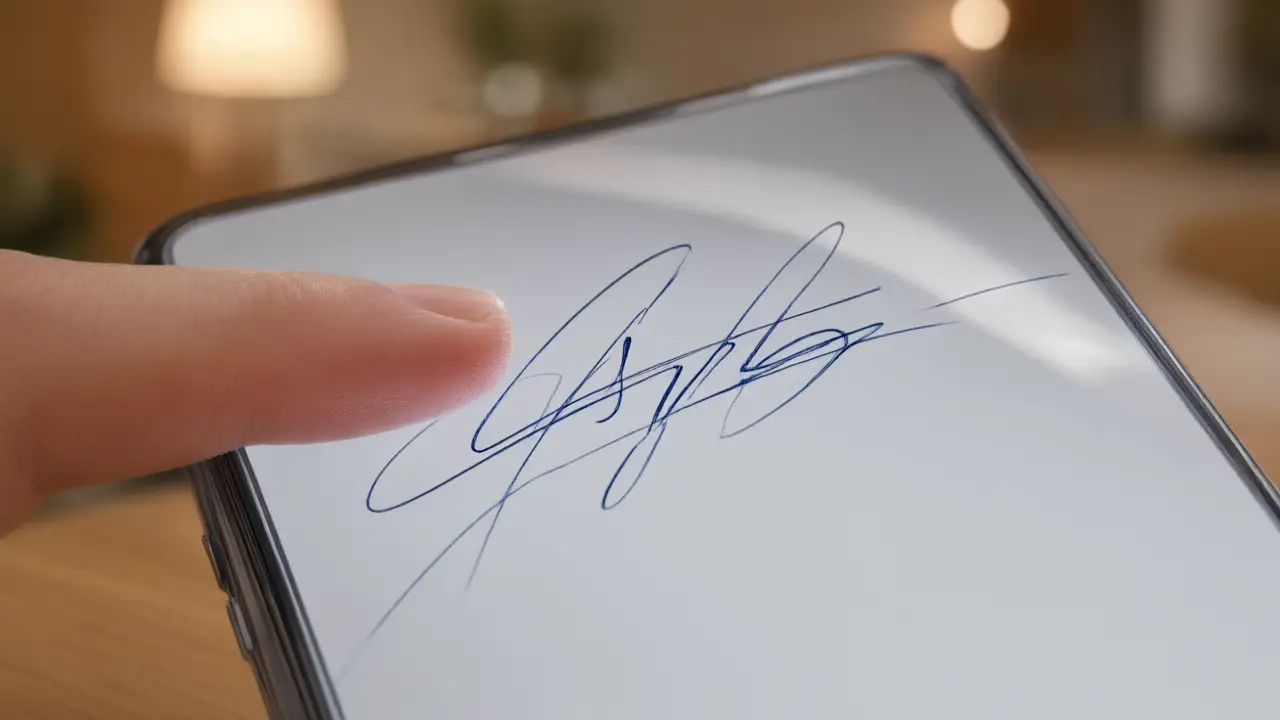
A fingertip is wider and less precise than a pen nib, so a signature drawn straight on a phone screen tends to come out heavier and less detailed than the same signature on paper. Simplifying the shape slightly for touch input usually reads better than fighting the screen to reproduce every stroke exactly.
Getting the mark off the paper
Write on unlined white paper with a dark pen, photograph it straight down in daylight, and let the background be as bright as possible. A handwritten signature on your phone start here: everything the software can do later depends on this one clean capture.
A stylus narrows the gap considerably and is worth using if you sign documents on a phone or tablet often — it restores much of the control a pen gives you on paper.
Placing it on the document
The finished signature should be a transparent image, cropped close, sized to the signature line rather than to the page. A white rectangle around it is the single most common giveaway that a signature was pasted in.
Whichever input you use, the exported image matters more than the drawing tool: a transparent PNG with clean edges looks identical on the final document whether it was drawn with a finger or a stylus.
What makes it hold up
What usually matters in a dispute is not the beauty of the mark but the trail around it: who sent the file, when it was signed, from which address. The drawn signature is the visible part of a much longer record.
You can build any of these online: open the signature generator, draw or type your name, and place the result straight onto a PDF or Word file. Nothing is uploaded — the document never leaves your device.